K5D
K5DIntroduce To NotebookLM: Your Personal AI Research Assistant
1 Introduce To NotebookLM: Your Personal AI Research Assistant
NotebookLM is a powerful AI tool from Google designed to help you understand your documents better. Unlike general AI chatbots that use the whole internet, NotebookLM focuses only on the files you upload. This means its answers are more accurate and relevant to your specific work or study materials.
1.1 Key Features of NotebookLM
- Source-Grounded AI: It only answers based on the documents you provide.
- Automatic Summaries: It creates quick overviews of long files instantly.
- Citations: It shows you exactly where it found the information in your source.
- Studio Functions: It can turn your notes into a audio overview, video overview, slide deck, mindmap, flashcards, quiz, infographic… quickly with one click
- Notebook Organization: You can group multiple files (PDFs, Docs, websites) into one project.
- Notes Organization: You can save an aswer as a notes, you can make a note to be a source to enrich sources….
2 How to Use NotebookLM
2.1 1. Login
Go to the NotebookLM website and sign in with your Google Account. It is free to use and works directly in your web browser.
2.2 2. The Interface
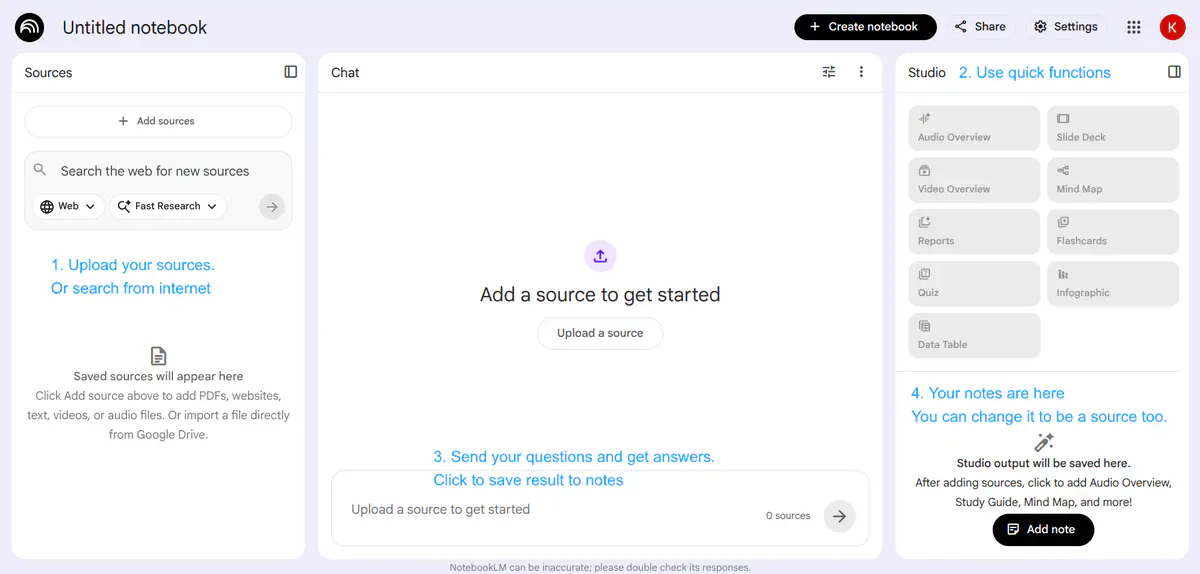
Once you open a notebook, you will see three main parts:
- Left Panel (Sources): This lists all the documents you have added.
- Middle Area (Chat): This is where you ask questions and see AI answers.
- Notebook Guide: A special section that helps you create summaries and study guides… and your saved results
2.3 3. How to Work with NotebookLM
Step 1: Upload Sources Click the "+" (plus) icon in the Sources panel. You can upload PDFs, select files from your Google Drive, or paste text from a website. Or search from the internet. After upload, notebooklm will auto create a short summary for all source.
Step 2: Create a Summary After uploading, click on some buttons in studio functions section to make materials to help you start learning.
Step 3: Ask Questions (Q&A) Type your question in the chat box at the bottom. For example: “What is the main goal of this document?” or “List the key dates mentioned.”
Step 4: Check Citations When the AI answers, look for small numbers. Click on them to see the exact paragraph in your original file. This helps you verify that the information is 100% correct.
Step 5: Save the answer Click save to note as the bottom of the answer.
Step 6: Make note tobe a source Click more button beside a note and chose convert to source to enrich your sources.
Repeat from step 2 or step 3